
PDF Postman is the easiest way to send a secure message from Outlook. Nearly anyone on any computer or mobile device can receive a PDF Postman message without installing any special software. All they need is the password.
PDF Postman is an alternative to complex email encryption programs that may require exchanging public keys and certificates, installing special software or surrendering personal information during a registration process. Whether you are a small office/home office user, or a corporate professional with an experienced IT department behind you, you will appreciate the ease with which PDF Postman can be installed and used.
PDF Postman secures outbound email messages and file attachments using the Portable Document Format or PDF envelope. PDF Postman leverages the wide adoption of PDF Reader software, eliminating the need for special software on the recipient's computer.
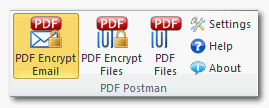
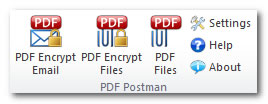
After PDF Postman is installed, you will notice some additional buttons have been added to Outlook's new email message tool bar. These buttons allow you to have PDF Postman protect the entire email message (PDF Encrypt Email), protect only file attachments (PDF Encrypt Files), or convert file attachments into unprotected PDF files (PDF Files). Click on the option you wish to use, then send your email message as you normally would.
The PDF Encrypt Email function is available in the Outlook tool bar after you open a new email message. To select this option, simply click on it, and then send the email message.
To send a secure message, just type your Outlook email message as you normally would, select the "PDF Encrypt Email" button from the Outlook tool bar, and send your message.
These buttons allow you to have PDF Postman protect the entire email message (PDF Encrypt Email), protect only file attachments (PDF Encrypt Files), or convert file attachments into unprotected PDF files (PDF Files). Click on the option you wish to use, then send your email message as you normally would.
PDF Postman will convert your Outlook email and attachments into to a PDF file, then apply strong US Government approved AES-128 bit encryption.
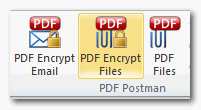
The PDF Encrypt Files function is an optional tool.The PDF Encrypt Files function is available in the Outlook tool bar after you open a new email message. In PDF Postman 2.0 or later, this function will not appear in the Outlook toolbar unless it is enabled in PDF Postman's settings. To enable this function, click PDF Postman's Settings > Settings Tab > Display Options section, check the box "PDF Encrypt Files," and then Save. The "PDF Encrypt Files" button will now appear in the Outlook email toolbar.
Use the "PDF Encrypt Files" option in situations where you only want to protect file attachments and not the message. Remember, this option will only protect file attachments; your message will be sent unprotected.
PDF Postman will prompt you for a password if one has not already been associated with the recipient. You can optionally choose to store the password for future use.
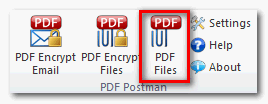
The PDF Files function is an optional tool for creating a PDF file from documents attached to an email message. In PDF Postman 2.0 or later, this option must first be enabled from the Settings tab, afterwhich it will be appear in the Outlook tool bar when you open a new email message. To enable this function in the Outlook toolbar, click PDF Postman's Settings > Settings Tab > Display Options section, check the box "PDF Files," and then Save. The "PDF Files" button will now appear in the Outlook email toolbar.
PDF Postman can convert many popular file attachment formats into a PDF file. If it is unable to convert a file attachment, then it will attach the file within the PDF.
The PDF Files function will always process all email file attachments.
Documents sent using the PDF Files function are not encrypted, and are therefor sent unencrypted over the internet. This function should never be used to share sensitive information. Use the PDF Encrypt Email function to encrypt a message and file attachments instead of this option.
More and more, the people you need to communicate with are utilizing a variety of devices: laptops, iPads, mobile phones, etc. You need to reach them securely on whatever device they are using.
PDF Postman's secure PDF files are compatible with standards-compliant PDF viewers available for the Windows, Mac, Linux, Solaris, and popular mobile platforms like Android and iOS. Leveraging the ubiquity of the PDF format means your recipient already has the software needed to open your message.
To open your PDF Postman file, recipients simply click on the PDF file to open it. Their PDF viewer will prompt them for the password, which you will need to share with them. The best way to share a password is through a different medium, such as telephone, in person, through an instant or text message. You should not share the password through an email message.
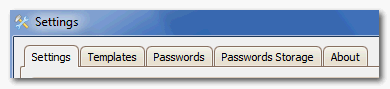
The Settings area allows you to configure how PDF Postman works and change stored passwords. The settings area is configured into four general areas: Settings, Templates, Passwords and Passwords Storage.
SETTINGS
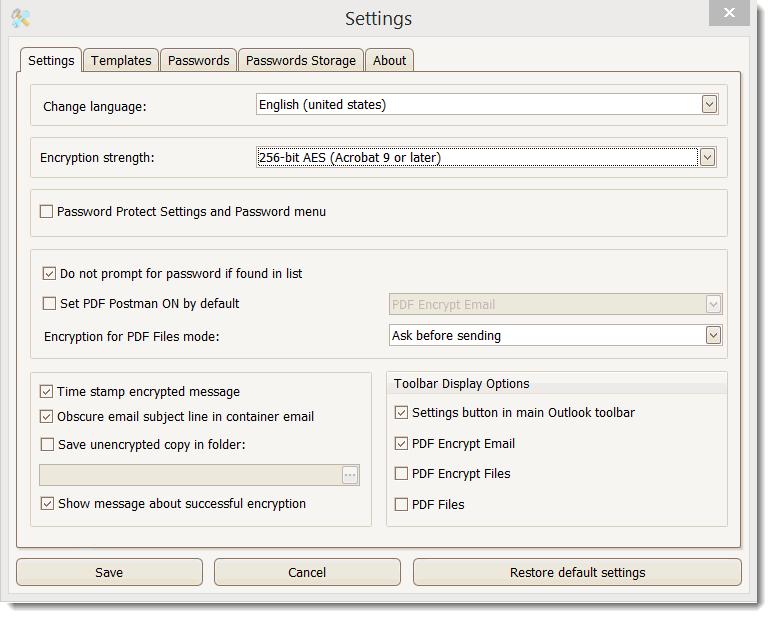
Change Language - PDF Postman supports several languages and we're adding more languages all the time. Select the language from the drop down list. To request a language, or to report a typographical error please contact our support team.
Password Protect Settings and Password Menu - Requires a correct password each time the PDF Postman Settings and Password menu is accessed.
Show PDF Postman bar in Outlook explorer bar - Uncheck this box if you wish to remove PDF Postman from the main Outlook toolbar, or from the "Add-ins" toolbar in Outlook 2010.
Do Not Prompt for Password if Found in List - If checked, PDF Postman will not ask you for a password if there is a password already associated with the recipient.
Set PDF Postman ON by default - If checked, the PDF Postman "PDF Encrypt Message" buton will automatically be selected when a new Outlook email message is created. It can be manually de-selected.
Time Stamp Encrypted Message - If checked, PDF Postman will include within the encrypted PDF file the date and time that the message was encrypted.
Obscure Email Subject Line in Container Email- If checked, PDF Postman will always obscure the subject of your email in the container email. If unchecked, PDF Postman will always use your original subject as the subject for the container email.
Save Unencrypted Copy in Sent Items Folder - If checked, PDF Postman will save an unencrypted copy of the email in your Sent Items folder. Use this function if your compliance officer requires unencrypted copies of messages that you send with PDF Postman.
Show Encryption Success Message - If checked, PDF Postman will always display a confirmation message after your email has been converted to an encrypted PDF file.
Save unencrypted copy in folder - If checked, PDF Postman will save an unencrypted PDF copy of the message in a folder location that you specify. This is useful for meeting compliance and email retention requirements.
Toolbar Display Options - Lets you select the PDF Postman buttons that will appear in the Outlook email toolbar. Check a box to select that menu item.
Templates
The Templates tab is where you can adjust the PDF Postman container message. This is the message that is shown in the email that is sent to the recipient when the "PDF Encrypt Email" option is selected.
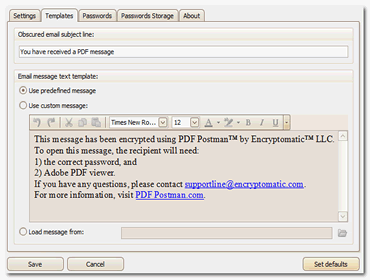
Use Predefined Message - To use our standard PDF Postman recipient greeting, select this option.
Use Custom Message - To create your own greeting, select this option.
Passwords
The Passwords tab stores passwords and associates them with an email address. PDF Postman will check this list when you are sending a PDF encrypted message.
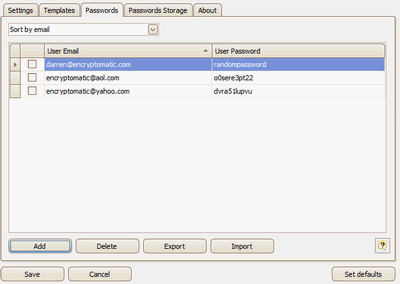
To change a password or email address, just click on it.
To delete one or more recipients from this list, just check the box and then select Delete.
Export function allows you to save the password list to a text file
Import function allows you to import the password list from a text file.
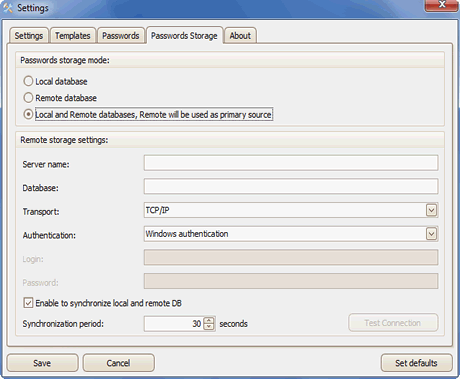
Passwords Storage
PDF Postman can store passwords in three ways:
Local Database - stores all passwords on the local client machine. This is usually the best option for individual users.
Remote Database - stores all passwords in remote database.
Local and Remote Databases - stores passwords in two locations, with remote database used as the primary source. This may be the best option in an enterprise environment when deployed by knowledgeable IT personnel.
For a more detailed discussion about these options, please refer to the Remote Database Setup Manual.
If you have not found an answer to your question here, you may contact the support team through our online ticket system. A case number will be assigned to your issue and you will be able to track its progress through to completion.
When writing, please include the version of your Windows operating system, whether it is 32 or 64-bit, and the version of Outlook you are running.


© 2005, Encryptomatic LLC. Fargo, ND, USA.