MessageExport
MessageExport®
The Flexible, Powerful Email Export Add-in for Microsoft® Outlook®. Backup, copy, convert and zip your Outlook emails and folders.

Download Free Trial | Watch Demo | Contact Support
System Requirements: Compatible with Microsoft Outlook® 2010/2013/2016/2019
Microsoft Windows 10
Requires Microsoft .Net Framework 4.5.
Related Product: PstViewer Pro email viewer/converter
MessageExport is an add-in for Microsoft Outlook 2013 or later that lets you quickly and easily save Outlook email messages to defined places, in defined formats. MessageExport can automatically copy your messages to a folder, a Sharepoint Server Library, zip file, or send to your printer. Just choose your messages, then select the format from the MessageExport window.
Supported Export Formats :
| Outlook to PDF | Yes |
| Outlook to MSG | Yes |
| Outlook to EML | Yes |
| Outlook to HTML | Yes |
| Outlook to MHT | Yes |
| Outlook to TXT | Yes |
| Outlook to GIF | Yes |
| Outlook to JPG | Yes |
| Outlook to MBOX | Yes |
MessageExport makes project based workers more efficient. Users can setup custom profiles that can accomplish a number of tasks that they may be performing manually.
For example, if you are working on a special project and need to export certain messages in PDF format to a specific Sharepoint library, need to compress and encrypt the PDF files into a single zip file using a standard password, want to extract file attachments, remove the source messages and call a shell command after export, a custom MessageExport profile can be created to accomplish all those steps in virtually a single a single click.
MessageExport can also compress the exported documents into a single zip file, optionally apply password protection, and then copy it to a designated location, such as a local folder, network location, or even a Sharepoint server library.
How to Use MessageExport for Outlook
Using MessageExport is easy.
- Select the Outlook messages or folder you want to export.
- Choose the "export profile" (such as "Export to PDF") from the MessageExport drop down list.
- Click the green disk icon.
MessageExport goes to work exporting your Outlook email.
You may also drog and convert individual files directly to a selected folder using MessageExport's Export Folder Explorer.

MessageExport Folder Explorer lets you "drag and convert" email messages. Just choose your export profile, and then drag the email to the folder. When you drop the email, it is automatically converted using the current export profile.
Creating Custom Export Profiles
The Export Profiles that appear in the MessageExport toolbar may be customized or created according to your needs, and may involve any of MessageExport's capabilities.
For example, you could configure profile to include a folder location and formatting preferences. When the project is finished, simply delete the profile if you wish. You can give any name to an export profile, such as project name, or short description of its function. For example, a profile that exports MSG files into a zip file could be called, "Export MSG to Zip."
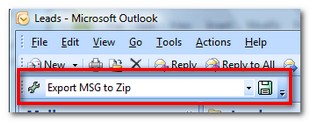
MessageExport also allows you to mass export and convert email messages while extracting file attachments.
Now Preserves Outlook Folder Tree
Are you one of those people who meticulously files every email into its proper folder? MessageExport lets you preserve the Outlook folder tree structure while exporting messages. Activate this function for any MessageExport profile by selecting the Output Folder tab.
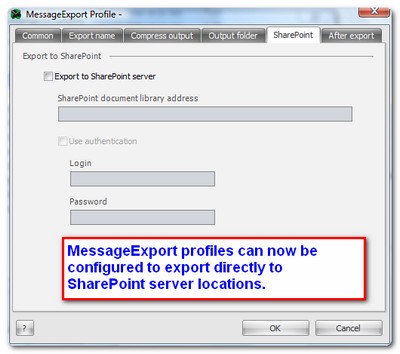
Now Supports SharePoint Server
MessageExport makes it easy to export and format email messages directly to SharePoint server locations. Just configure a new export profile, and enter your Sharepoint document library address, login and password.
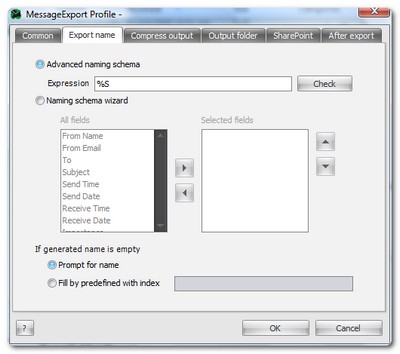
Naming Exported Email Files
Assigning a unique file name to exported messages is easy with MessageExport. A Naming Scheme wizard lets you quickly construct a unique file naming using any combination of these fields: To, From, Subject, Send Time, Send Date, Receive Time, Receive Date, Importance, Export Time, Export Date.
You can join any of these criteria using "+ _ -".
Supported email file formats:
- MSG - Messages created by a Microsoft Outlook; compatible with other programs that use Microsoft's Messaging Applications Programming Interface (MAPI).
- EML - E-mail message saved by Microsoft Outlook Express, Thunderbird, or other e-mail programs; may also contain an e-mail attachment, or files sent with the message.
- PST - Data file containing personal information used by Microsoft Outlook, such as e-mail folders, addresses, calendar, and other data. MVCOM requires the presence of MAPI to utilize this functionality.
Buy 1 license, 10, or 1,000. MessageExport is available as an .msi file that can be deployed across your enterprise.
Customization is available.
*Microsoft and the Office logo are trademarks or registered trademarks of Microsoft Corporation in the United States and/or other countries.
Connect With Us
Accreditations