



MessageExport's E-mail Export Extensions for Microsoft® Outlook® will copy, save, convert, backup and zip your Outlook e-mail in powerful ways. Export Emails in bulk or individually.
System Requirements: Compatible with Microsoft Outlook® 365/2023/2021/2019/2016/2013
Windows 11/10.
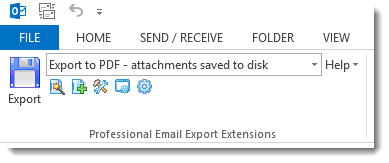
In 2008 an architectural design firm discovered our Outlook e-mail viewing products and asked if we could integrate its powerful export functionality with Microsoft Outlook. We soon learned that Outlook's ability to export e-mail messages is very limited. Since then MessageExport has become the premier tool for extending Outlook's capabilities to format, copy, name, and convert e-mail messages to PDF and other formats. MessageExport is now used all over the world by thousands of large corporations, state and national governments and professional offices. MessageExport works with Microsoft Outlook to accomplish time consuming e-mail export tasks quickly. Operations requiring three or four steps to export, convert, name and copy e-mail messages can now be done in a single step with MessageExport
| Outlook to PDF and PDF/A | Yes |
| Outlook to MSG | Yes |
| Outlook to EML | Yes |
| Outlook to HTML | Yes |
| Outlook to MHT | Yes |
| Outlook to MBOX | Yes |
| Outlook to GIF, TIF, PNG | Yes |
| Outlook to TXT | Yes |
| Outlook to CSV | Yes |
MessageExport goes to work exporting your Outlook e-mail
You may also drop and convert individual files directly to a selected folder using MessageExport's Export Folder Explorer.

Export Folder Explorer lets you "drag and convert" e-mail messages in a single step. Just choose your export profile, and then drag the e-mail to the folder. When you drop the e-mail, it is automatically converted according to the selected export profile.
The Export Profiles that appear in the MessageExport tool bar may be customized and new profiles can be built according to your needs.
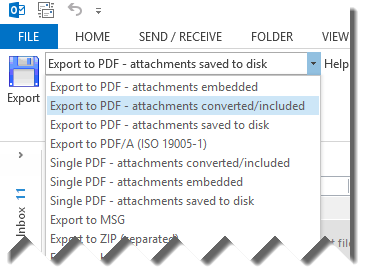
MessageExport allows you to mass convert Outlook e-mail messages and extract file attachments.
Are you one of those very organized people who meticulously files an e-mail into its proper folder? MessageExport lets you preserve the Outlook folder structure while exporting e-mail messages.
MessageExport for Outlook makes it easy to export and format e-mail messages directly to SharePoint server locations. Just configure a new export profile, and enter your Sharepoint document library address, login and password.
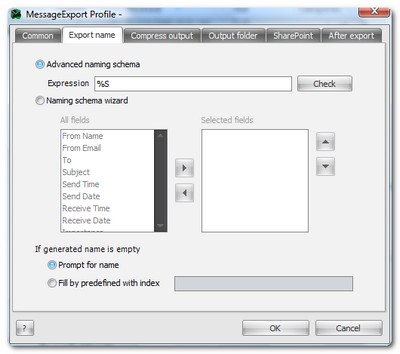
Assigning a unique file name to exported messages is easy with MessageExport. A Naming Scheme wizard lets you quickly construct a unique file naming using any combination of these fields: To, From, Subject, Send Time, Send Date, Receive Time, Receive Date, Importance, Export Time, Export Date.
You can join any of these criteria using "+ _ -".
MessageExport is available as an .MSI file that can be deployed across your enterprise. Customizing is available.

*Microsoft® and the Office® logo are trademarks or registered trademarks of Microsoft Corporation in the United States and/or other countries. Encryptomatic® and MessageExport™ are marks of Encryptomatic LLC.


© 2005, Encryptomatic LLC. Fargo, ND, USA.